· tech
Windows 11 No Sound Fix: Restoring Audio Devices & Drivers Under Pressure
Step-by-step troubleshooting guide for Windows 11 no sound issues during heavy multitasking in a fast-paced corporate environment.
Pinging Slack channels were blowing up with urgent bug reports from our engineering leads in San Francisco, while my New York finance stakeholders were frantically asking for updated Q3 model projections on Zoom. To handle the chaos, I had five different heavy work tools open simultaneously: Bloomberg Terminal, a local Docker environment, three sprawling Excel workbooks, Jira boards, and a live client presentation deck. Suddenly, my headset went completely dead right as an incoming escalation call hit. No notification chimes, no system sounds, and zero audio output.
Panicking, I frantically clicked the speaker icon on the Windows 11 taskbar, only to see the dreaded red X over the volume control. The system output device had completely vanished into thin air right in the middle of a high-pressure workday.
Root Cause Breakdown: Why Windows 11 Audio Drops Under Heavy Load
Before rushing to download random driver packages, we need to understand why high-performance enterprise rigs suddenly drop their sound devices. Here are the three most common culprits:
- Windows Audio Service Hang: When CPU usage spikes across multiple heavy apps, the core Windows Audio or Windows Audio Endpoint Builder services can freeze or crash entirely.
- Driver Conflict & Resource Contention: Background virtualization, active Bluetooth peripherals, and USB audio interfaces fighting for bandwidth can cause Realtek or Intel audio drivers to throw a fault.
- Default Output Disconnection: Windows 11 automatically switches audio endpoints when connecting monitors, docking stations, or Bluetooth headsets, occasionally losing the designated playback device state.
Step-by-Step Resolution Workflow
Follow this battle-tested engineering workflow to get your audio back online in under five minutes without losing your active workspace.
Step 1: Restart the Windows Audio Services
Instead of a full system reboot, kickstart the audio backend directly from the service manager.
- Press
Win + Rto open the Run dialog box. - Type
services.mscand hit Enter. - Scroll down to find Windows Audio.
- Right-click Windows Audio and select Restart. (If prompted to restart dependent services like Windows Audio Endpoint Builder, click Yes).
- Check your taskbar speaker icon to verify if the red X has disappeared.
Step 2: Refresh and Reinstall Drivers via Device Manager
If restarting the service does not work, your audio driver has likely crashed or corrupted its cache.
- Right-click the Start button and select Device Manager.
- Expand the Sound, video and game controllers category.
- Look for your primary audio device (such as Realtek Audio or Intel High Definition Audio).
- Right-click the device and select Update driver->Browse my computer for drivers->Let me pick from a list of available drivers on my computer.
- Choose High Definition Audio Device (the generic Microsoft driver), click Next, and confirm the warning prompt. This bypasses buggy manufacturer software temporarily to restore instant functionality.
Step 3: Run the Built-In Audio Troubleshooter
Let Windows 11 check endpoint routing and registry keys automatically.
- Open Settings by pressing
Win + I. - Navigate to System->Troubleshoot->Other troubleshooters.
- Locate Playing Audio and click the Run button.
- Follow the on-screen prompts to let the troubleshooter automatically restart audio services and correct default device configurations.
Engineering Comparison Matrix
To help you diagnose future audio issues faster, use this quick reference matrix:
| Symptom | Primary Diagnostic Tool | Quick Fix Action | Estimated Time |
|---|---|---|---|
| Red X on Volume Icon | services.msc | Restart Windows Audio Service | 60 seconds |
| Device Missing from List | Device Manager | Scan for hardware changes / rollback driver | 2 minutes |
| Intermittent Crackling | Sound Settings | Disable audio enhancements & spatial sound | 90 seconds |
Frequently Asked Questions (FAQ)
1. Why does my audio keep disappearing every time I dock or undock my laptop?
This is typically caused by Thunderbolt or USB-C dock firmware mismatches. When you dock, Windows attempts to reroute audio through the monitor’s HDMI/DisplayPort output. Update your dock’s firmware and Intel Thunderbolt software via your corporate IT software center.
2. The generic Microsoft driver fixed my sound, but now my audio quality sounds flat. How do I restore my manufacturer enhancements?
The generic driver is an emergency fallback. Once your workflow stabilizes, go to your laptop manufacturer’s support site (e.g., Dell SupportAssist or Lenovo Vantage), download the latest certified Realtek audio driver, install it, and reboot your machine.
3. What should I do if none of these software steps bring back my sound?
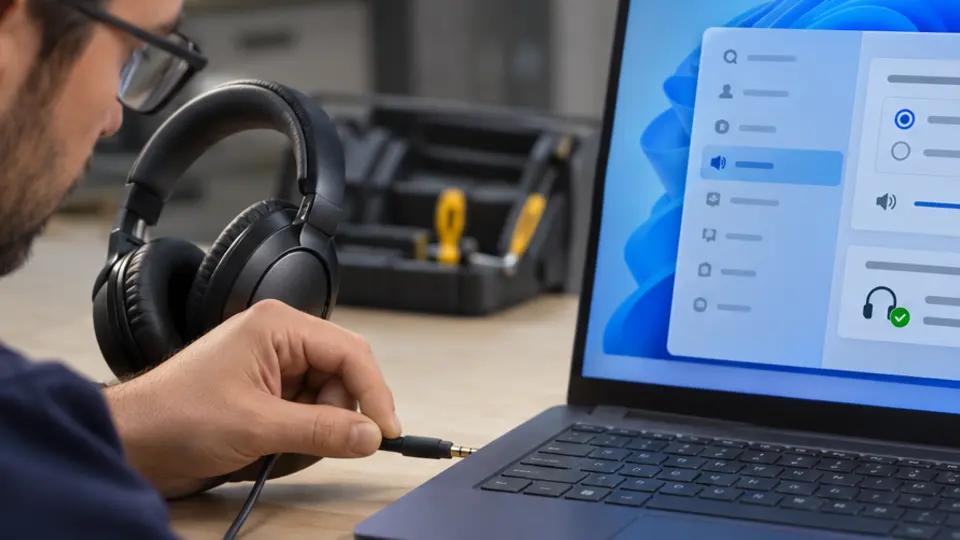
If software troubleshooting fails, verify your physical connections. Unplug external USB audio interfaces or headsets, test with standard 3.5mm wired headphones, and check if your hardware mute button is accidentally engaged on your keyboard or headset inline controller.